Build Your Own Planet Classifier in Minutes
Imagine your child building an AI that can tell the difference between Uranus, Saturn, and Mars—not by writing code, but by simply showing the AI pictures and watching it learn. That's exactly what kids can do with Kekula's AI Blox.
In this tutorial, we'll walk through how to build a planet classifier that recognizes these three distinct planets. It's a perfect first AI project that combines space exploration with real AI concepts while being fun and engaging.
What You'll Learn
By building this project, kids will understand:
- How AI learns from examples – The more pictures you show it, the better it gets
- Why data matters – Different angles, lighting, and image quality help AI recognize patterns
- How to train and test AI – Creating a model, then using it to make predictions
- Real-world applications – The same technique powers satellite imaging, medical diagnosis, and more
What You'll Need
- A Kekula account (sign up free)
- 10-20 images each of Uranus, Saturn, and Mars (easily found on NASA's website or space image databases)
- About 15-20 minutes
Step 1: Start a New AI Blox Project
Log into Kekula and navigate to AI Blox. Click "New Project" to start with a blank notebook. Think of this as your AI workspace where you'll connect different building blocks together.
Step 2: Upload Your Training Data
Add a File Upload block to your notebook. This is where you'll upload images of planets to train your AI. For best results:
- We'll classify three planets: Uranus (blue-green ice giant), Saturn (with its iconic rings), and Mars (the red planet)
- Gather 10-20 images per planet from NASA or space image databases
- Use variety: different angles, distances, and lighting conditions
- Include both telescope images and space probe photos
- Keep images clear and properly labeled
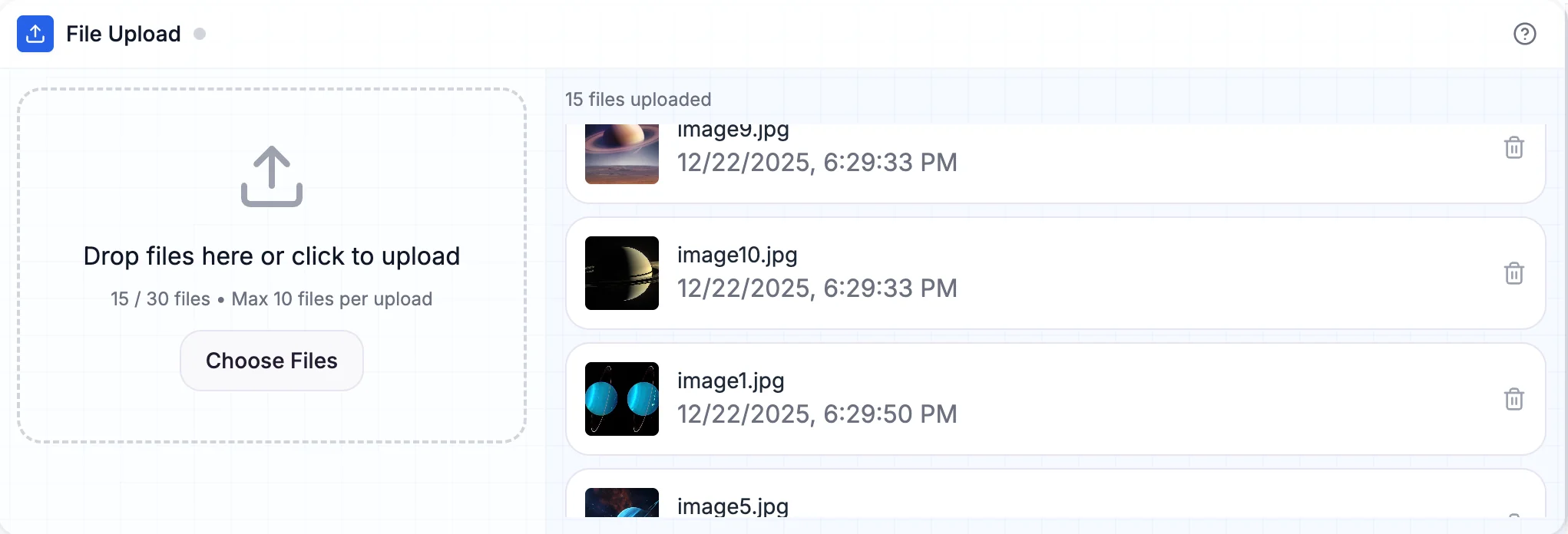
File Upload block with planet images ready for labeling
Teaching moment: Explain to kids that AI learns by finding patterns in the data. More diverse examples = better learning! Just like how they learn to recognize planets by seeing many different pictures.
Step 3: Label Your Images with Dataset Manager
Connect the File Upload block to a Dataset Manager block. This is where the magic happens—you'll teach the AI which planet is which by labeling each image.
Here's how:
- In the Dataset Manager, you'll see all your uploaded images
- Select all the Uranus images
- Click "Label Selected" and type "Uranus"
- Repeat for Saturn and Mars
- Review your labels to make sure everything is correct
- The Dataset Manager will show you how many images you have per planet
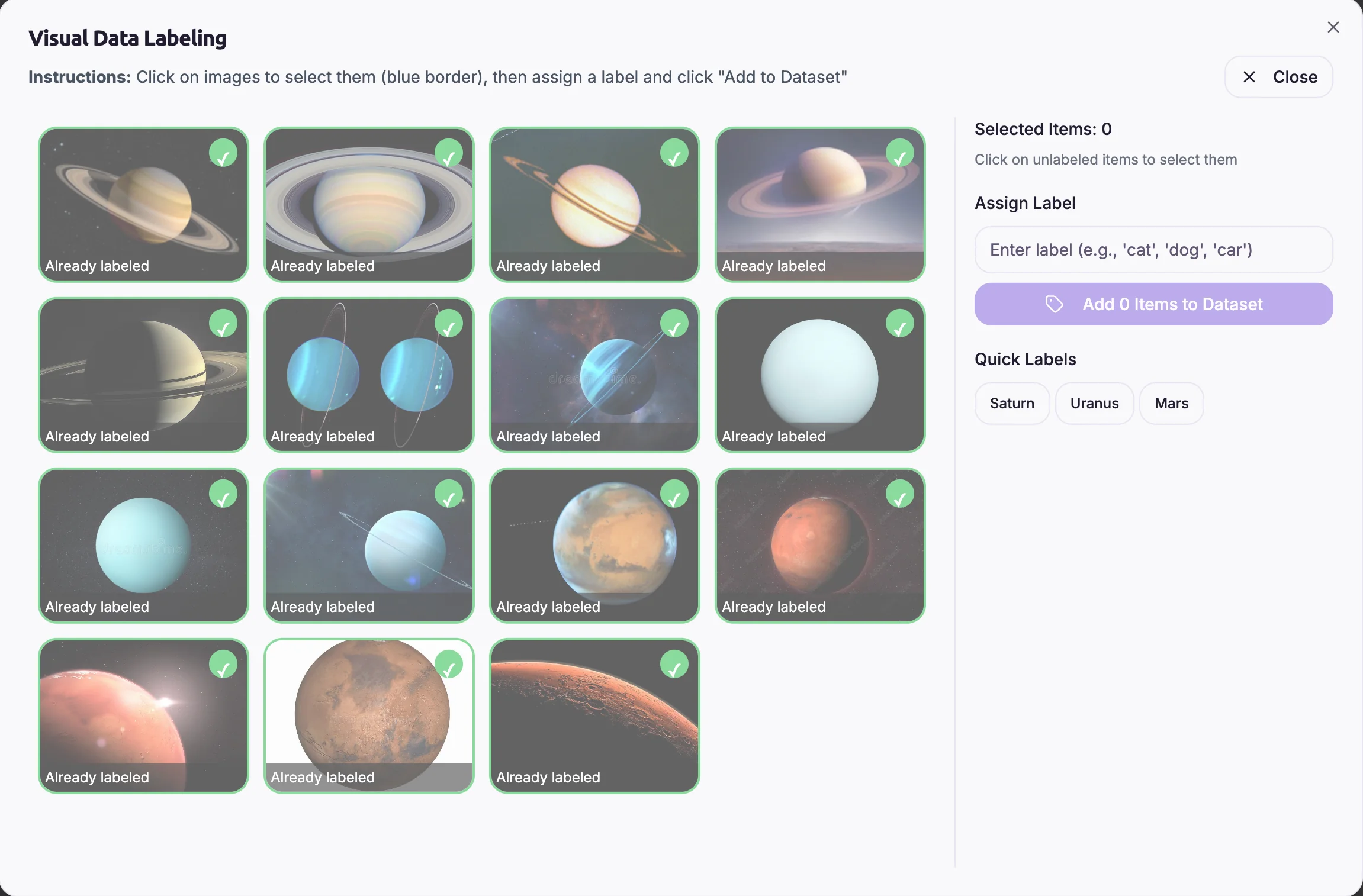
Dataset Manager with planets labeled and organized by category
Teaching moment: This is called "supervised learning"—you're supervising (teaching) the AI by showing it examples with correct answers. The AI will learn to recognize patterns that make Uranus's blue-green color different from Saturn's rings and Mars's red surface!
Step 4: Train Your Model
Now comes the exciting part! Add a Training block and connect your Dataset Manager to it. This block will create your AI model.
Here's what happens:
- Connect the Dataset Manager output to the Training block input
- Select "Image Classifier" as your model type
- Click "Train" and watch the magic happen!
- You'll see the training progress and accuracy improving in real-time
- Training typically takes 1-3 minutes depending on how many images you have
- When complete, the Training block will output your trained model
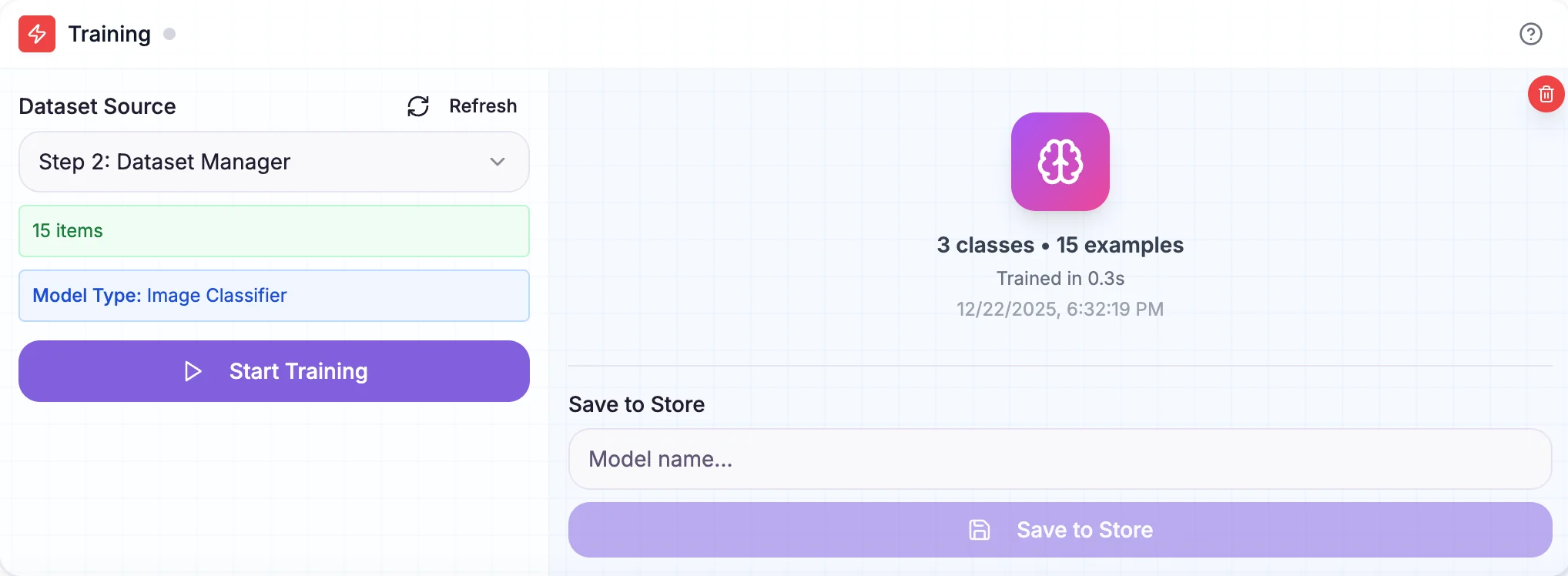
Training block showing real-time progress as the AI learns to recognize planets
Teaching moment: The AI is analyzing thousands of tiny details in each image—colors, textures, shapes, patterns—to learn what makes Saturn's rings unique, Mars's red surface distinctive, and Uranus's blue-green atmosphere different from the others. It's finding patterns that even we might not notice!
Step 5: Test Your Classifier with Inference
Now let's use your trained model! Add a new File Upload block (for test images) and anInference block. Connect them like this:
File Upload (test images) → Inference ← Training (your model)
The Inference block needs two inputs:
- The trained model from your Training block
- New images from your second File Upload block
Now the fun part—testing! Try uploading:
- New images of planets you trained on (not used in training)
- Different views or angles of the same planets
- Artistic renderings or illustrations of planets
- Planets the AI hasn't seen (like Uranus or Mercury)
- Images of moons to see what happens!
Watch how the AI responds. The Inference block will show you which planet it thinks it is and how confident it is in that prediction. Does it get confused between similar-looking planets? Does it work better with telescope images or space probe photos? This is where real learning happens!
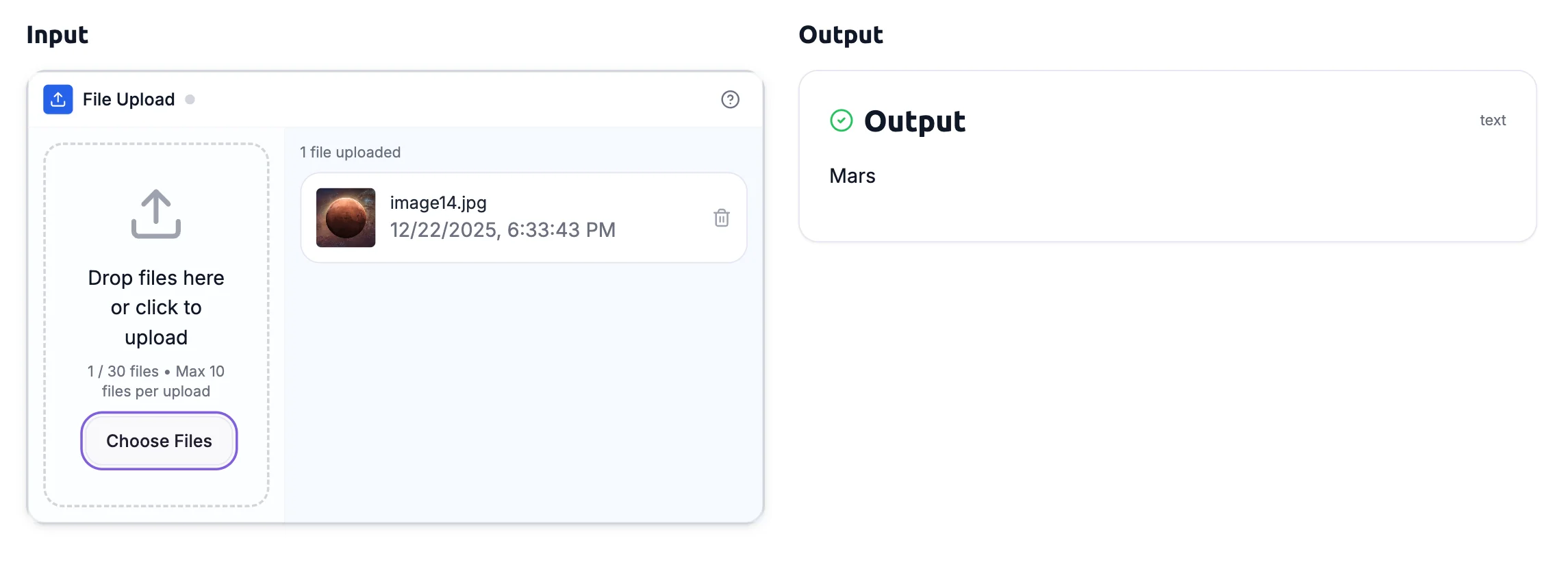
Inference block in app mode detecting planets with confidence scores
Teaching moment: The Inference block is using your trained model to make predictions on new data. This is exactly how real AI systems work—train once, then use the model many times to make predictions!
Summary: What You Built
Congratulations! You've just built a real AI image classifier that can recognize Uranus, Saturn, and Mars. Let's recap what you accomplished:
- Collected training data – Gathered images of three distinct planets
- Labeled your dataset – Used Dataset Manager to teach the AI which planet is which
- Trained an AI model – Watched the AI learn patterns from your labeled images
- Made predictions – Used Inference to classify new planet images
- Understood AI concepts – Learned about supervised learning, training vs. inference, and confidence scores
Key Takeaways
Through this hands-on project, kids learned that:
- AI learns from examples – The more quality data you provide, the better it performs
- Training creates a reusable model – Train once, use many times for predictions
- AI shows confidence levels – It tells you how certain it is about each prediction
- Real-world applications – This same technique powers satellite imaging, medical diagnosis, and more
Head over to Kekula's AI Blox and start building! If you don't have an account yet, you can sign up free.
Have questions? Reach out to us at support@kekula.ai—we'd love to hear about your AI learning journey! 🚀