Create Your Own Hand Sign Language with AI
What if you could create your own secret hand language? Make a special gesture that means "cat" or "lighthouse" and teach an AI to recognize it instantly! With Kekula's AI Blox and the powerful HandPose block, kids can invent custom hand signs and build a real-time recognition system—no coding required.
In this tutorial, we'll create a custom hand sign language where you design your own gestures and train AI to understand them. This project introduces computer vision and shows how AI can learn to recognize any hand shape you create—the same technology used in sign language translation, gaming, and virtual reality!
What Makes This Project Special?
Creating your own hand sign language is unique because:
- Total creativity – Invent any hand gesture to mean anything you want!
- Real-time recognition – See AI recognize your custom signs instantly through your camera
- Automatic landmark extraction – HandPose automatically detects hand structure, you just label what each gesture means
- Seamless integration – Works perfectly with Dataset Manager, Training, and Inference blocks
- Real-world applications – Same technology used in sign language apps, gaming, and accessibility tools
What You'll Need
- A Kekula account (sign up free)
- A computer with a webcam (for capturing your hand signs)
- Your imagination to create custom hand gestures! (We'll use "cat" and "lighthouse" as examples)
- About 15-20 minutes
Understanding the HandPose Block
Before we start building, let's understand what makes the HandPose block special. Unlike regular image classification where the AI looks at raw pixels, HandPose first detects your hand and extracts 21 key points (landmarks) like fingertips, knuckles, and wrist position.
This means the AI learns the shape and position of your hand rather than just the image appearance. That's why you can create any hand gesture you can imagine—the AI will learn the unique pattern of your hand's shape! It works seamlessly with Training, Inference, and Dataset Manager blocks—they all understand hand landmark data.
Step 1: Design Your Custom Hand Signs
First, decide what hand gestures you want to create! For this tutorial, we'll make two custom signs:
- "Cat" – Create a hand shape that represents a cat (maybe curved fingers like cat ears, or paws)
- "Lighthouse" – Design a gesture that looks like a lighthouse (perhaps a fist with one finger pointing up)
The beauty of this project is that you decide what each gesture looks like! There's no right or wrong— just make sure each gesture is distinct enough that the AI can tell them apart.
Step 2: Create Your Training Pipeline
Log into Kekula and navigate to AI Blox. Create a new notebook called "My Hand Sign Language" or "Custom Hand Gestures."
For training, you'll build this flow:
Camera → HandPose → Dataset Manager → Training
Step 3: Capture Your Hand Signs with Camera
Add a Camera block to capture your custom hand gestures. This is where you'll perform your "cat" and "lighthouse" signs in front of the camera!
Tips for capturing good hand signs:
- Make your gesture clearly in front of the camera
- Capture 10-15 examples of each sign from slightly different angles
- Keep your hand in the frame and well-lit
- Try small variations—tilt your hand slightly, move it left/right
- Make sure each gesture is distinct from the others
Pro tip: The more varied your examples, the better the AI will recognize your signs in different positions and lighting conditions!
Step 4: Extract Hand Landmarks with HandPose
Connect the Camera block to a HandPose block. This is where the magic happens!
The HandPose block will:
- Detect your hand in each camera frame
- Extract 21 landmark points (fingertips, knuckles, wrist, etc.)
- Convert your hand gesture into structured pose data
- Pass this data to the next block
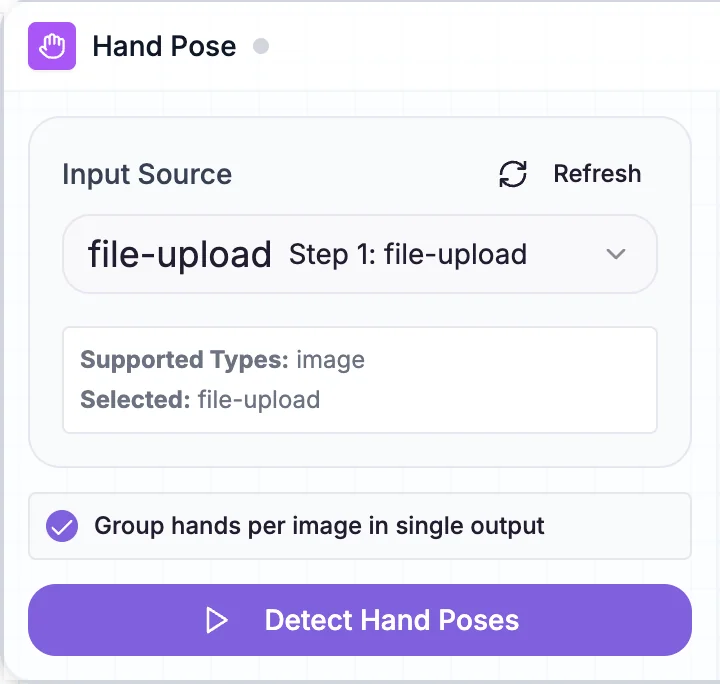
HandPose block extracting hand landmarks from your custom "cat" and "lighthouse" signs
Teaching moment: Explain that the HandPose block is like giving the AI "X-ray vision" for hands. Instead of looking at colors and pixels, it sees the skeleton structure of your hand—making it much easier to recognize your custom gestures, no matter what they look like!
Step 5: Label Your Custom Signs with Dataset Manager
Connect the HandPose block to a Dataset Manager block. Here's where you'll teach the AI what each of your custom gestures means!
The labeling process:
- The Dataset Manager receives hand landmark data from HandPose
- You'll see thumbnails of your captured hand gestures
- Select all the examples where you made your "cat" sign
- Click "Label Selected" and type "Cat"
- Now select all the examples of your "lighthouse" sign
- Click "Label Selected" and type "Lighthouse"
- Review your labels to ensure accuracy
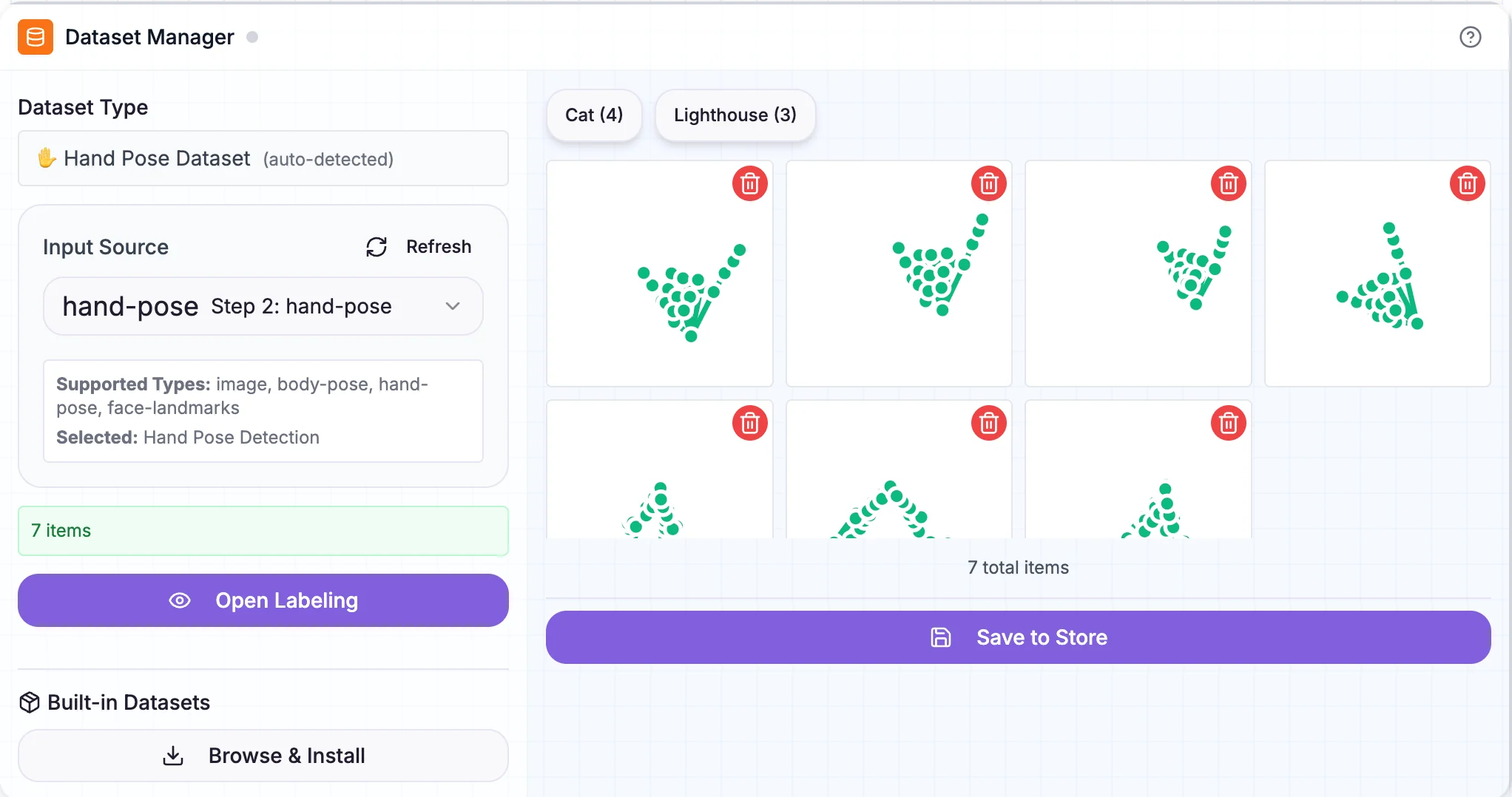
Dataset Manager with custom "cat" and "lighthouse" hand signs labeled and organized
Teaching moment: The Dataset Manager works seamlessly with HandPose data! HandPose automatically extracted the hand structure, and now you're teaching the AI what each gesture means by labeling them. This is supervised learning—you supervise by providing the correct labels!
Step 6: Train Your Custom Sign Language Model
Connect the Dataset Manager to a Training block. This will create your AI model that can recognize your custom "cat" and "lighthouse" signs!
Training steps:
- Connect Dataset Manager output to Training block input
- The Training block automatically detects it's working with hand pose data
- Click "Train" to start the learning process
- Watch the accuracy improve as the AI learns to distinguish your custom signs
- Training typically takes 1-2 minutes
Teaching moment: The AI is learning the unique patterns in your hand landmark positions. It's figuring out what makes your "cat" sign different from your "lighthouse" sign—maybe the finger positions, the hand angle, or the overall shape. It's learning the geometry of YOUR custom gestures!
Step 7: Test Your Custom Signs in Real-Time!
Now for the exciting part—testing your custom sign language in real-time! Create a new flow for inference:
Camera → HandPose → Inference
Here's how to set it up:
- Add a Camera block to capture live video
- Connect it to a HandPose block (to extract hand landmarks in real-time)
- Add an Inference block and connect your trained model to it
- Connect the HandPose output to the Inference input
- Switch to "App Mode" to see the live interface
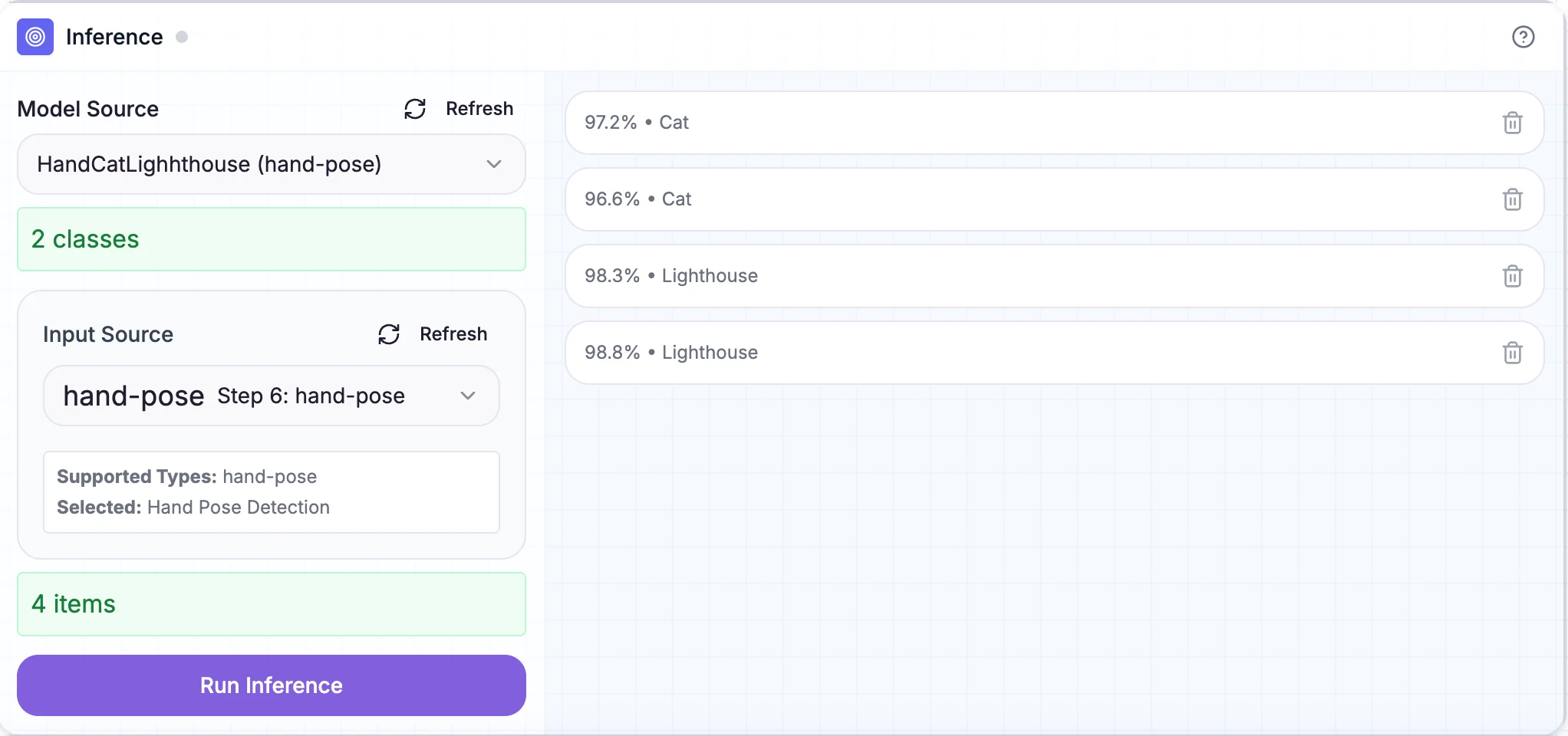
Real-time recognition of custom "cat" and "lighthouse" hand signs with confidence scores
Now make your "cat" and "lighthouse" signs in front of your camera and watch the AI recognize them in real-time! You'll see the predicted sign and confidence score update instantly. Try making the gestures from different angles or distances—does the AI still recognize them?
Teaching moment: This is real-time AI inference! The camera captures video, HandPose extracts hand landmarks from each frame, and Inference uses your trained model to predict which custom sign you're making—all happening multiple times per second. This is the same technology used in virtual reality controllers and sign language translation apps!
Summary: What You Built
Congratulations! You've created your own custom hand sign language that AI can recognize in real-time. Here's what you accomplished:
- Designed custom hand signs – Created unique gestures for "cat" and "lighthouse"
- Created a training pipeline – Camera → HandPose → Dataset Manager → Training
- Extracted hand landmarks – Used HandPose to convert gestures into structured pose data
- Labeled your custom signs – Taught the AI what each gesture means
- Trained a custom classifier – Built an AI model that understands YOUR hand signs
- Built real-time inference – Camera → HandPose → Inference for live sign recognition
- Understood computer vision – Learned how AI can understand human body language
Key Takeaways
Through this hands-on project, you learned that:
- HandPose extracts structure – It converts images into hand landmark data that's easier for AI to understand
- Seamless block integration – HandPose works perfectly with Dataset Manager, Training, and Inference blocks
- Real-time AI is possible – You can build interactive systems that respond instantly to gestures
- Computer vision understands humans – AI can recognize body language, not just objects
- Same workflow, different data – The Upload → Label → Train → Inference pattern works for many AI tasks
Ready to build more? Head over to Kekula's AI Bloxand start creating! If you don't have an account yet, you can sign up free.
Have questions or want to share your gesture recognition system? Reach out to us at support@kekula.ai—we'd love to see what you built! 👋✌️👍